10 AI Chat Prompts to Edit Invoices Faster
Discover the best AI chat prompts for editing invoices — add line items, update clients, change tax, and more with AI Invoice Generator.
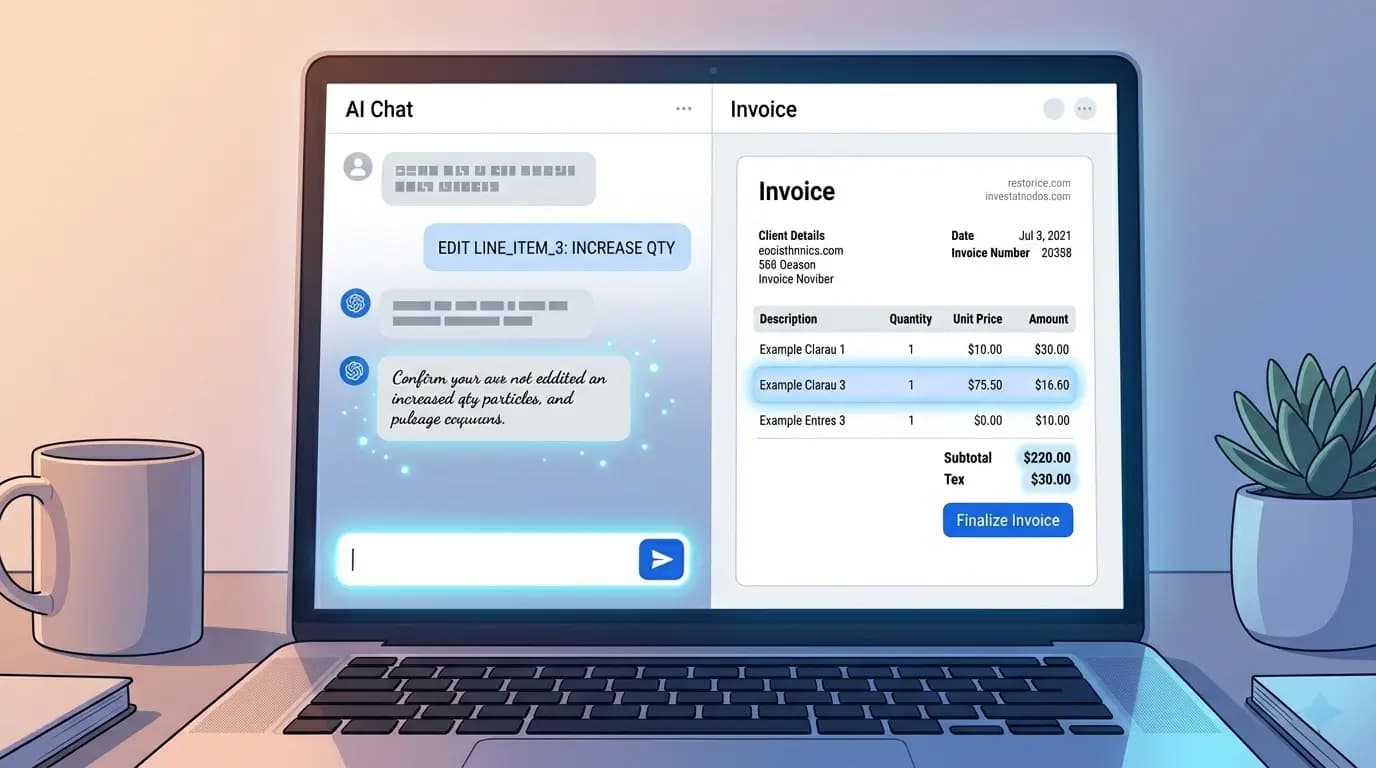
The chat panel in AI Invoice Generator is the fastest way to update an invoice. You describe the change in everyday language and the AI applies a precise patch to your invoice data. Below are ten prompts that work reliably — feel free to copy and adapt them.
Client and business details
- "Update the client to Jane Smith, [email protected], 88 Oak Avenue, Portland OR 97201."
- "Change my business name to Northline Consulting and add phone (555) 234-8901."
- "Set the invoice number to INV-2026-042 and issue date to today."
Line items and pricing
- "Add logo design package for $1,200 and three rounds of revisions at $150 each."
- "Remove the hosting line item."
- "Change the consulting rate from $100 to $110 per hour."
- "Add a 10% discount on the subtotal."
Tax, notes, and payment
- "Set tax to 7% and add a note: Payment due within 14 days via bank transfer."
- "Add payment instructions: Wire to Account #12345, Routing #67890."
Upload a reference image
Click the paperclip icon in the chat to attach a receipt or handwritten note photo. Then write: "Extract line items from this image and add them to the invoice." The AI reads the image and maps amounts into your invoice fields. See our full guide on receipt-to-invoice conversion for more detail.
When to edit manually instead
For a single character fix or a small label change, clicking the field on the preview is quicker than chatting. Use AI for bulk updates — multiple line items, client swaps, or tax recalculations.
Try these prompts on your next invoice.
Start Editing with AI