How to Turn a Receipt Photo into an Invoice
Upload a receipt photo and let AI extract line items, amounts, and vendor details into a professional invoice — step-by-step guide.
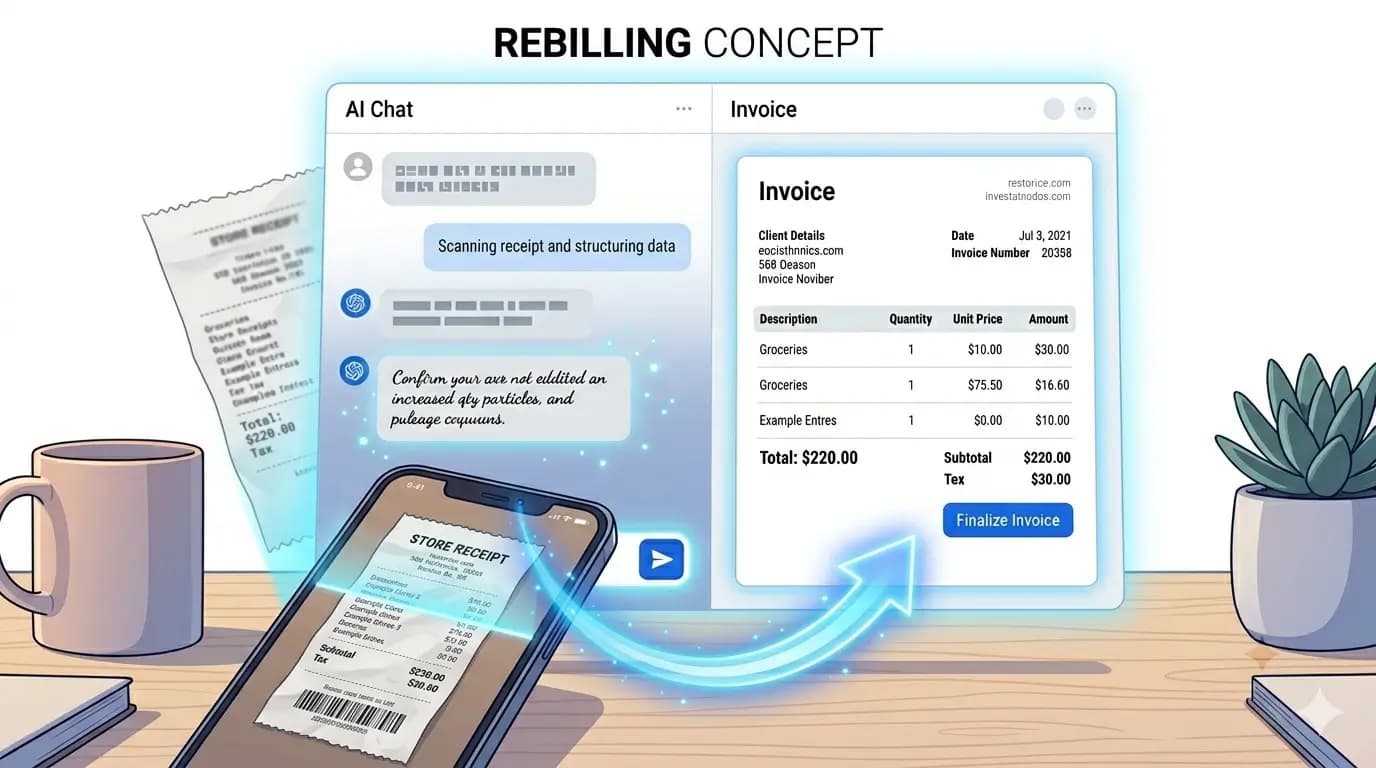
Freelancers and small business owners often start with a paper receipt or a photo from their phone. AI Invoice Generator can read that image and pull structured data into your invoice — saving you from retyping every line.
When receipt-to-invoice helps most
- Rebilling a client for materials you purchased
- Turning supplier receipts into a client-facing invoice
- Digitizing handwritten job notes with prices
- Building an invoice from a photo of a quote or estimate
Step-by-step: receipt photo to invoice
- Open aiinvoice.net and optionally set your business details first via chat.
- In the chat panel, click the paperclip (attach) icon.
- Select a clear photo — JPEG, PNG, or WebP, under 4 MB.
- Add a short message such as: "Extract all items and prices from this receipt and add them as line items."
- Review the preview. Fix any misread amounts by chatting again or editing fields directly.
- Click Save / Print to export as PDF.
What the AI can and cannot read
The AI works best on printed text — store receipts, invoices, and typed quotes. Very faded thermal paper or heavy handwriting may need manual cleanup. It extracts descriptions and amounts; you should still verify tax rates and client details before sending.
Combine with templates
After extraction, open Customize Design to pick a template that fits your brand. The Receipt template mimics a narrow thermal printout; Modern or Corporate work well for formal client billing.
Have a receipt on your phone? Try it now.
Upload a Receipt Photo